

Creating videos for YouTube involves much more than recording footage and uploading it. Creators need to organize recordings, remove mistakes, refine pacing, add music, prepare captions, and make sure the final video delivers a good viewing experience. Channels that publish regularly also need an efficient way to turn long recordings into shorter clips for YouTube Shorts and other social platforms.
Choosing the right editing software can make a significant difference to this process. Some applications provide professional timeline controls for detailed editing, while others use AI to automate repetitive tasks such as removing pauses, generating captions, and finding useful moments in long recordings.
The requirements also change as a channel grows. A beginner creating simple talking-head videos may need a different editor from a creator producing documentaries, gaming videos, tutorials, or multicamera interviews.
In 2026, YouTube creators have several options that combine traditional editing controls with newer AI-assisted features. Here are six video editors worth considering, with their main strengths and the types of YouTube content they support.
What Should You Look for in a YouTube Video Editor?
A good YouTube editing tool should support the complete process, from organizing raw footage to preparing the final upload. Timeline editing, audio controls, captions, transitions, and flexible export settings are important for most creators.
AI features can also make regular production easier. Automatic transcription, footage search, silence removal, and first-cut assembly can reduce the time spent on repetitive tasks. If you publish both long-form videos and Shorts, look for tools that make it easy to create different versions from the same source material.
Thumbnail preparation is another part of the publishing process. While not every video editor includes a dedicated thumbnail designer, choosing clear frames and exporting suitable images can help creators prepare visual assets for their uploads.
1. Invideo Editor: Best for AI-Assisted YouTube Video Editing
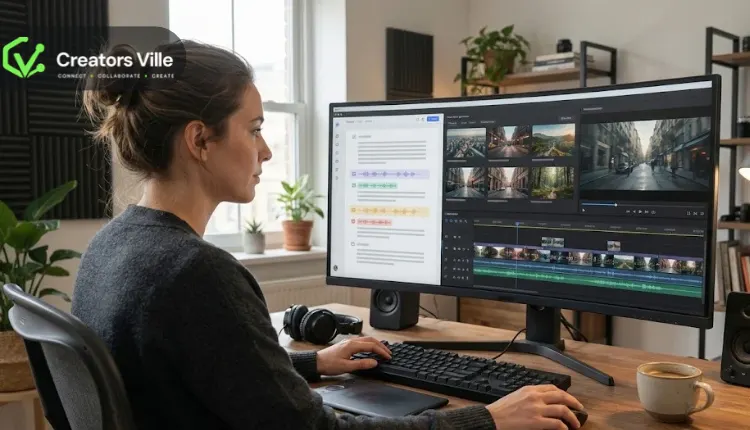
Invideo editor combines a professional video editing timeline with AI agents that can handle several parts of YouTube production. Its youtube video editor lets creators trim clips, remove mistakes and awkward pauses, adjust playback speed, add captions, include music and voiceovers, and arrange footage on a multitrack timeline. Its AI agents can also analyze and log footage by dialogue, actors, props, and camera angles, select the strongest takes, remove filler and mistakes, and assemble a first cut. Creators can then refine the sequence manually, add B-roll, adjust colors, apply effects, and prepare shorter vertical versions for YouTube Shorts. The platform also supports collaborative editing, keyframe-level controls, and exports up to 4K. This makes it particularly useful for creators who work with long recordings, interviews, tutorials, product reviews, or multiple camera angles and want AI to handle repetitive editing work without losing control over the final video.
Best for: YouTube creators who want AI-assisted footage assembly, professional timeline editing, and easier long-form-to-Shorts repurposing.
2. Adobe Premiere Pro: Best for Professional YouTube Production
Adobe Premiere Pro is a professional editing application suited to YouTube creators who need detailed control over their videos. Its multitrack timeline supports footage, audio, graphics, and effects, while features such as Text-Based Editing allow users to create and refine sequences through automatically generated transcripts. Editors can also generate captions, adjust colors, refine audio, and use automatic reframing when preparing content for different formats. Its integration with After Effects, Photoshop, and other Adobe applications makes it useful for channels that rely on motion graphics, custom visuals, and more advanced post-production. Premiere Pro also supports social media export and publishing options, including YouTube. Although it offers extensive creative flexibility, its interface and subscription-based pricing may take some getting used to for creators who only need straightforward editing tools. <Cite refs={[“turn785607search0″,”turn785607search2″,”turn785607search6”]}/>
Best for: Professional YouTubers, production teams, and creators who need advanced editing and Adobe Creative Cloud integration.
3. DaVinci Resolve: Best for Color Grading and Professional Finishing
DaVinci Resolve is an all-in-one post-production application that combines video editing, color correction, visual effects, motion graphics, and audio editing. Its Cut and Edit pages provide timeline controls for organizing footage, trimming clips, and assembling long-form YouTube videos. The Color page offers detailed grading tools, while Fairlight provides audio mixing and finishing capabilities. Creators can also work with subtitles, multicamera recordings, and collaborative projects. Its free version supports editing up to Ultra HD 3840 × 2160 at up to 60 frames per second with supported 8-bit formats, while the Studio edition adds advanced AI features and additional post-production tools. Resolve is especially useful for filmmakers, documentary creators, and channels that prioritize visual quality, although its extensive interface can require time to learn. <Cite refs={[“turn167063search0″,”turn167063search1″,”turn785607search4″,”turn785607search11”]}/>
Best for: Filmmakers and serious YouTube creators who need advanced color grading, audio mixing, and detailed editing controls.
4. Final Cut Pro: Best for Mac-Based YouTube Creators
Final Cut Pro is Apple’s professional video editing application, designed for Mac and iPad workflows. Its Magnetic Timeline helps creators arrange footage, dialogue, music, and supporting clips while keeping connected elements synchronized during edits. It also provides tools for multicamera editing, automatic captions, color grading, titles, transitions, and audio refinement. Features such as Magnetic Mask can isolate subjects without requiring a traditional green-screen setup, while its export options support YouTube and other social platforms. Final Cut Pro is particularly suitable for creators producing regular long-form videos, interviews, travel content, and professional channel productions on Apple devices. Its main limitation is platform compatibility, as it is not a native Windows application. <Cite refs={[“turn785607search1″,”turn785607search5″,”turn785607search8”]}/>
Best for: Mac-based YouTubers who want a professional editor with a streamlined timeline and strong creative controls.
5. CapCut: Best for YouTube Shorts and Quick Social Videos
CapCut is a video editing platform available across desktop, mobile, and web, with features designed for accessible content creation. Its timeline editor allows creators to arrange clips, add text, apply transitions, include music, and generate automatic captions. It also offers tools for resizing videos, background removal, and other AI-assisted editing tasks, depending on the version and plan. For YouTube creators, CapCut is particularly useful when turning short recordings or selected moments from longer videos into vertical Shorts. Its templates and straightforward controls make it convenient for frequent social content production, although creators working on complex documentaries or longer projects may prefer software with deeper post-production capabilities. <Cite refs={[“turn633681view6″,”turn167063search10”]}/>
Best for: YouTubers who regularly create Shorts, promotional clips, and quick social media videos.
6. Descript: Best for Talking-Head Videos and Podcasts
Descript takes a transcript-based approach to video editing. It automatically transcribes recordings and allows creators to edit their videos by changing the text, making it easier to remove filler words, repeated takes, and unwanted sections of dialogue. Its AI assistant, Underlord, can help with editing decisions, while Studio Sound improves voice clarity by reducing background noise. Descript also supports automatic captions, video clips, translations, and YouTube descriptions. Its YouTube publishing features make it useful for creators who produce interviews, educational videos, podcasts, webinars, and talking-head content. Although its text-based editing approach is convenient for dialogue-driven videos, creators who need extensive visual effects or detailed cinematic editing may prefer a traditional professional editor. <Cite refs={[“turn167063search2″,”turn167063search3″,”turn167063search12”]}/>
Best for: Podcasters, educators, interview creators, and YouTubers whose videos rely heavily on spoken content.
Website: Descript
Comparison: Which YouTube Video Editor Should You Choose?
| Video editor | Main strength | Best suited for |
| Invideo Editor | AI agents and editable timeline | Long-form editing and Shorts |
| Adobe Premiere Pro | Professional editing and Adobe integration | Advanced YouTube production |
| DaVinci Resolve | Color grading and post-production | Films and high-quality videos |
| Final Cut Pro | Magnetic Timeline | Mac-based creators |
| CapCut | Accessible editing and captions | YouTube Shorts |
| Descript | Transcript-based editing | Podcasts and talking-head videos |
How to Choose the Right Video Editor for Your YouTube Channel
The right editing software depends on your content format, publishing schedule, and production requirements. If you create long-form videos with several recordings, look for footage organization, timeline flexibility, and multicamera support. If your channel focuses on tutorials or interviews, automatic transcription and caption generation can save considerable editing time.
Creators who publish both long videos and Shorts should also consider how easily they can reuse existing footage. Preparing multiple versions from one recording can reduce the need to create completely separate videos for every platform.
Think about your thumbnail process as well. A strong thumbnail should clearly represent the video and complement its title. You can capture suitable frames from your finished edit and use a dedicated image design tool to add text and other visual elements.
Finally, consider your hardware, budget, export requirements, and learning curve. Testing an actual project before committing to a paid subscription is a practical way to determine whether an editor suits your channel.
Final Thoughts
The best video editor for YouTube creators is not necessarily the one with the largest number of features. It is the one that supports your content format and makes regular production manageable.
Premiere Pro and DaVinci Resolve offer extensive professional controls, Final Cut Pro is a strong option for Mac users, CapCut makes short-form editing accessible, and Descript simplifies dialogue-driven production.
Invideo editor stands out for combining AI agents with a professional editing timeline. Its ability to review footage, assemble first cuts, refine sequences, and prepare Shorts makes it worth considering for creators who want to spend less time on repetitive editing tasks while retaining control over their videos.
As your channel grows, your editing requirements may change. Choosing software that can support both your current projects and future production needs will make it easier to maintain a consistent publishing schedule.
Frequently Asked Questions
1. Which is the best video editor for YouTube creators in 2026?
The best choice depends on your editing requirements. Invideo editor is useful for AI-assisted editing and timeline control, Premiere Pro for professional production, DaVinci Resolve for color grading, and CapCut for Shorts and social content.
2. Which YouTube video editor is best for long-form videos?
Invideo editor, Adobe Premiere Pro, DaVinci Resolve, and Final Cut Pro are suitable for long-form editing. They provide timeline controls for arranging footage, audio, and supporting visuals, although their editing approaches differ.
3. Which video editor is best for creating YouTube Shorts?
CapCut is a convenient option for Shorts because of its accessible editing controls, captions, and social-focused features. Invideo editor is another option when creators want to extract moments from longer recordings and prepare vertical versions using AI assistance.
4. Can AI edit YouTube videos automatically?
Yes. AI editing tools can help review footage, select useful takes, remove pauses, generate captions, and assemble initial sequences. Invideo editor, for instance, allows AI agents to perform supported editing tasks directly on an editable timeline.
5. Which video editor is best for adding captions to YouTube videos?
Premiere Pro, Final Cut Pro, CapCut, Descript, and invideo editor all provide caption-related features. The best option depends on whether you need automatic transcription, detailed subtitle styling, or captions as part of a broader editing process.
6. Can I create YouTube videos and Shorts from the same footage?
Yes. Many editors allow creators to reuse existing footage, select interesting sections, and reframe them for vertical viewing. This makes it possible to produce Shorts and promotional clips from longer YouTube recordings.
7. Do YouTube creators need professional video editing software?
Not always. Beginners can start with accessible tools such as CapCut, while creators producing more complex videos may benefit from professional applications such as Premiere Pro, DaVinci Resolve, or invideo editor. The right choice depends on the level of editing control and automation required.